Document type
Use presets for records, receipts, forms, plans, drawings, faded paper, linework, and other paper-photo cleanup needs.


ScanForge for Mac
ScanForge works with existing folders of JPG, JPEG, PNG, TIFF, and HEIC document photos and scans. Preview a page, apply shared or per-file adjustments, and export new files locally on your Mac while the originals remain untouched. Requires macOS 14 Sonoma or later.
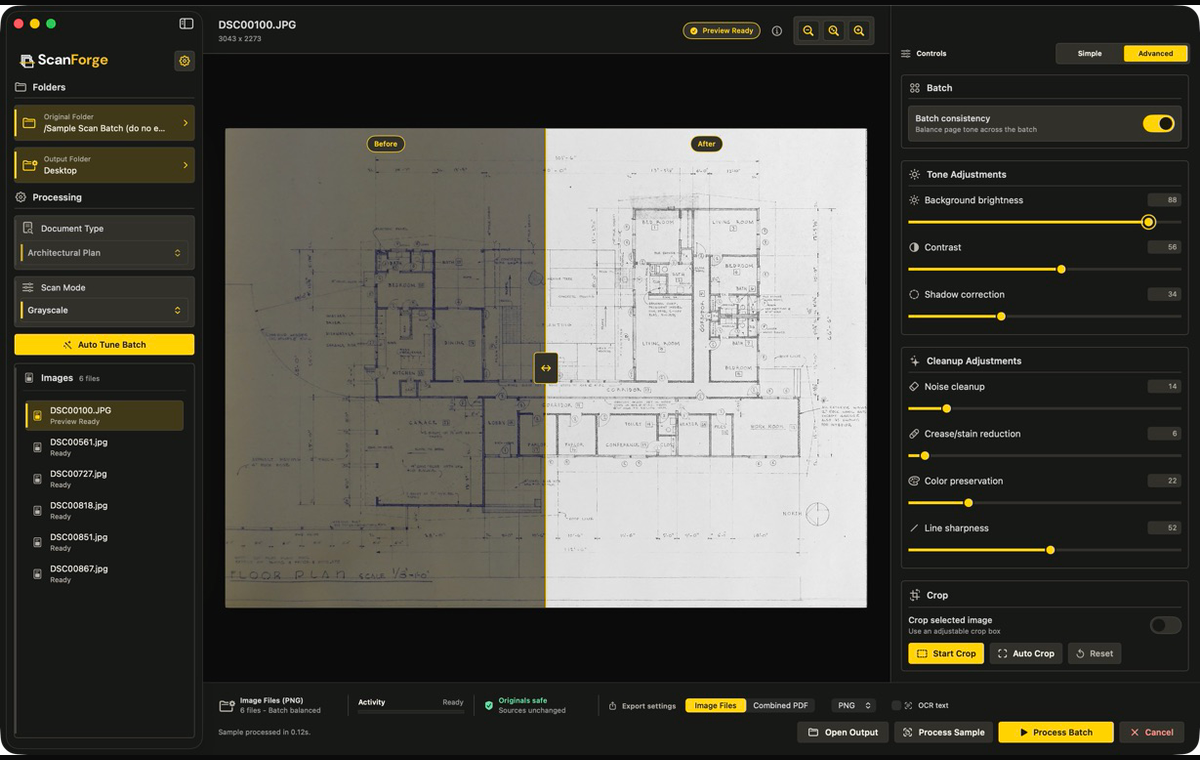
Bulk folder workflow
Designed for one file, tens, and hundreds of existing document photos or scans.
OCR text sidecars
Optional local text recognition when Image Files export and OCR Text are enabled.
Confirmed crop
Crop only when you choose and confirm the crop box.
Originals untouched
Source files are read, not rewritten.
Workflow
Select an existing image folder, review the discovered files, and compare a before-and-after preview. Choose shared settings for the batch, refine individual files where needed, then export to a destination you control. ScanForge reports progress and produces a completion summary with JSON or CSV logs.
01
Select or drag in a folder containing JPG, JPEG, PNG, TIFF, or HEIC images.
02
Review a page before committing the full folder and adjust the selected file or shared batch settings.
03
Create PNG, TIFF, or JPG files, or assemble the ordered pages as one combined PDF.
04
Check the completion summary, warnings, failures, and JSON or CSV processing logs.
Follow a document-photo batch from the selected source folder through preview, processing, and finished output.
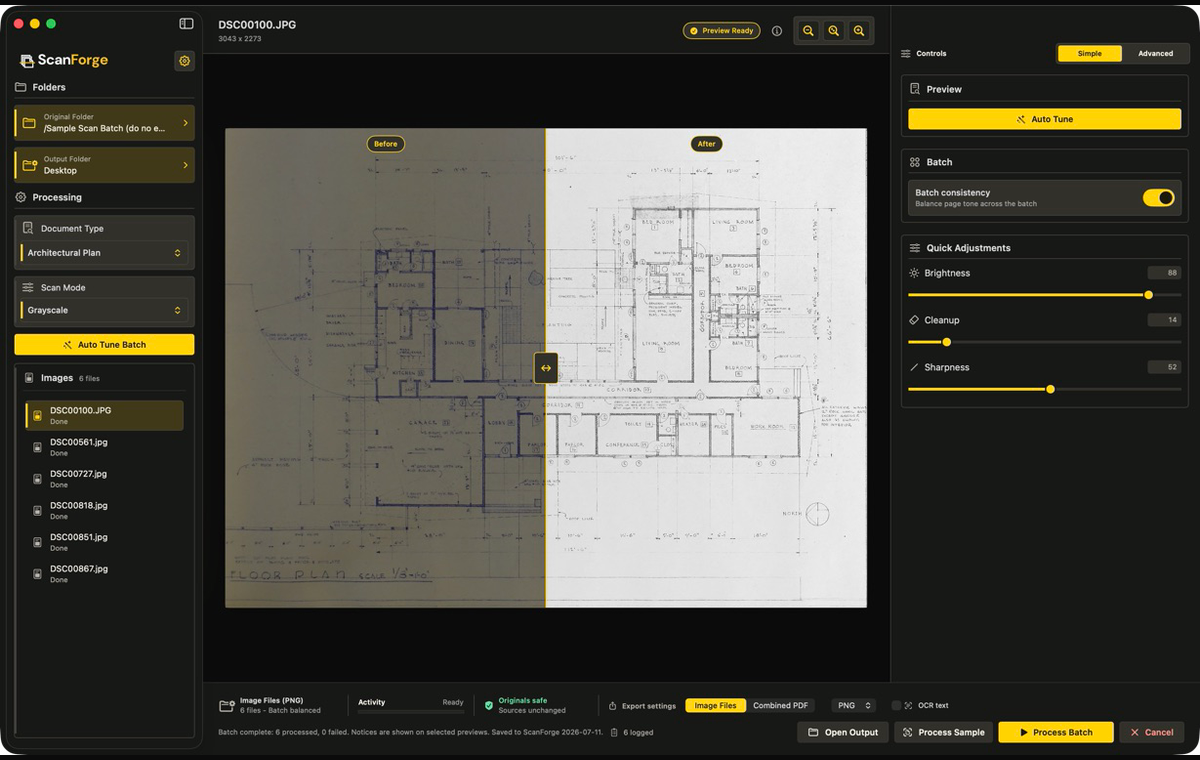
Select an existing folder, review the discovered files, and prepare a representative page for adjustment.
Use the split preview to judge tone, cleanup, color preservation, and line sharpness before exporting.
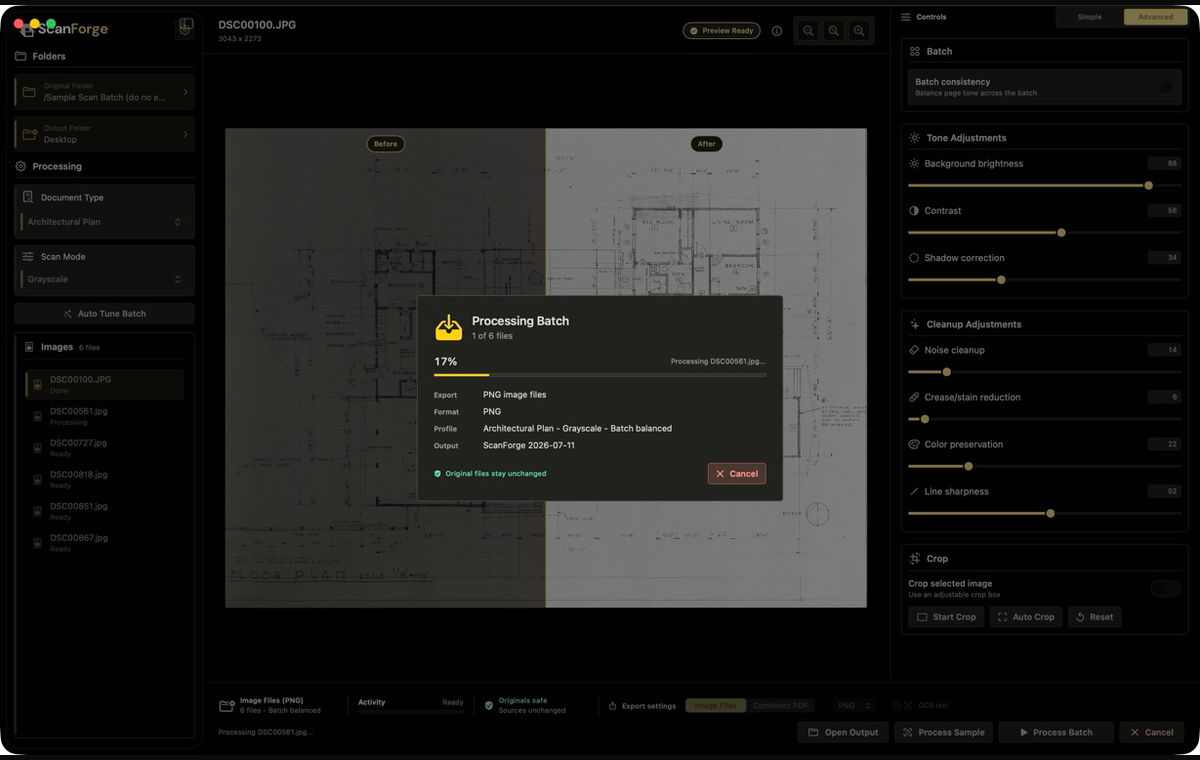
Track the active file and batch progress while ScanForge writes new output to the selected destination.
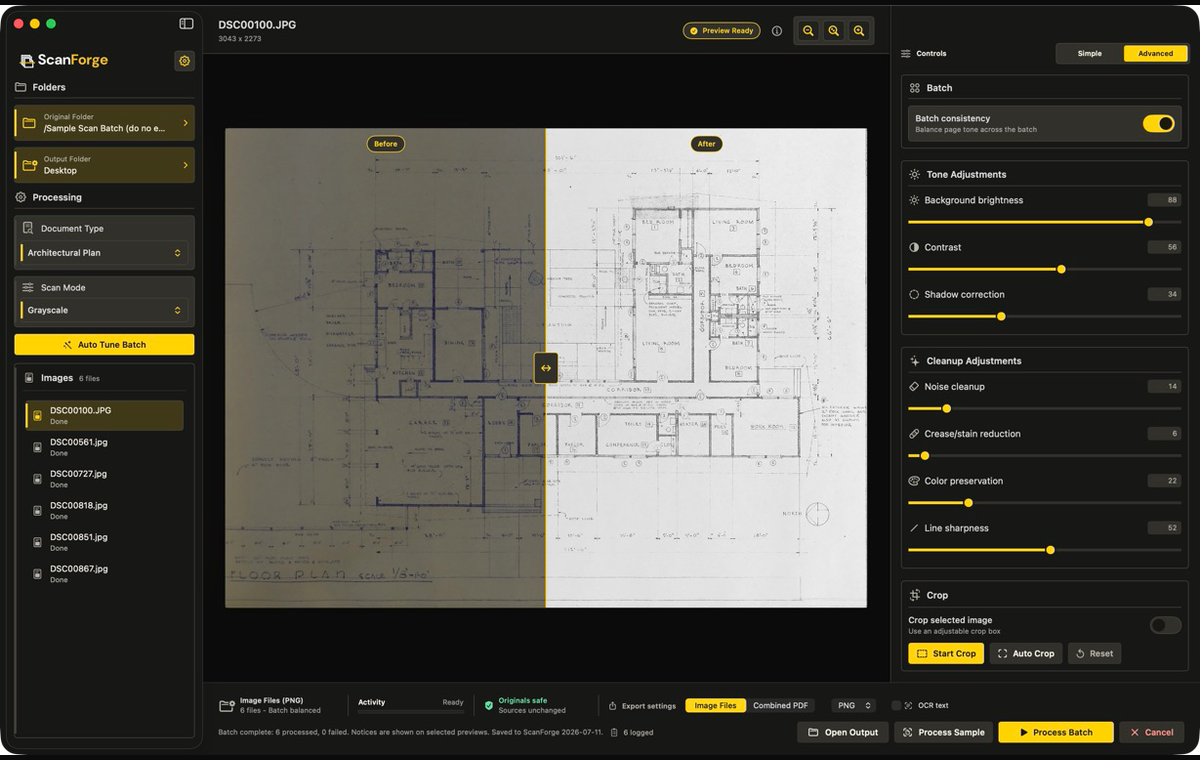
Open the output folder or process another sample after reviewing the completed batch state.
Choose an original folder containing JPG, JPEG, PNG, TIFF, or HEIC images.
Review a before-and-after sample and adjust brightness, contrast, cleanup, crop, resize, JPEG quality, or document type.
Keep edits on the selected file or apply the same processing settings across the batch.
Export cleaned PNG, TIFF, or JPG files; when Image Files export and OCR Text are enabled, add matching plain-text sidecars. Or create one combined PDF without an OCR text layer.
Monitor progress, cancel if needed, then open the output folder and review the completion summary plus JSON or CSV processing logs.
Controls
Use document modes and controls for tone, color, cleanup, linework, resize, and JPEG quality. Apply a consistent treatment across the folder, then keep exceptions on individual files when a page needs different handling. The before-and-after preview makes each choice visible before batch processing.
Use presets for records, receipts, forms, plans, drawings, faded paper, linework, and other paper-photo cleanup needs.
Adjust the selected file without forcing every page to use the same cleanup settings.
When a folder was captured under the same lighting, apply one balanced treatment across the full batch.
Crop and OCR
Crop is visible, adjustable, and applied only after you confirm it for the selected file. Auto Crop can suggest a starting box when it detects a reliable page edge, but it does not crop on import and is not guaranteed to detect every page. OCR uses local Apple Vision recognition. When Image Files export and OCR Text are enabled, successful recognition writes a matching plain-text sidecar beside the exported image. A no-text result creates an empty sidecar with a warning; a recognition failure creates no sidecar, adds a warning, and allows the batch to continue where possible. Combined PDF export does not include an OCR text layer.
Drag the crop area in the preview and apply it only after you are satisfied with the selected page.
Ask ScanForge to find a conservative starting box when page edges are reliable, then confirm or adjust it yourself.
A successful no-text result writes an empty sidecar with a warning. A recognition failure writes no sidecar, adds a warning, and lets the batch continue where possible.
Batch safety
ScanForge shows batch progress and supports cancellation. If an individual file cannot be read, the failure is logged and processing continues for readable files where possible. Collision-safe naming prevents new images, PDFs, sidecars, or logs from silently replacing existing output. The completion summary separates successes, warnings, and failures; a batch does not guarantee that every input will succeed.
See the active export, output folder, percent complete, and cancel action while a batch runs.
An unreadable file is logged with its failure reason while ScanForge continues processing readable files.
Collision-safe filenames prevent a new image, PDF, sidecar, or log from silently replacing an existing output.
Made for
ScanForge is designed for home and family archives, genealogy and local-history projects, architecture and design material, construction and field records, office and records workflows, education, artwork, sketches, and similar jobs. It begins after capture, with supported image files already on the Mac.
Clean plan photos, marked-up drawings, sketches, maps, and reference pages for review or handoff.
Convert receipts, forms, paper records, and document-photo folders into cleaner deliverables.
Process document photos after site visits, archive sessions, or any batch captured on a phone.
Inputs and outputs
Export cleaned PNG, TIFF, or JPG image files when pages need to remain separate. With Image Files export, enable OCR Text to add matching plain-text sidecars. Choose Combined PDF to assemble the ordered pages into one PDF without an OCR text layer. ScanForge also writes JSON or CSV logs for review. Source images are read but not rewritten, and new outputs go to the selected destination.
Focused scope
ScanForge is a native Mac, offline bulk scan converter for existing image folders. It starts when the document photos or scans already exist. Its job is to clean, balance, crop, export, and log those files without growing into a camera scanner, cloud suite, photo editor, or generative system.
ScanForge does not take camera scans or control scanner hardware. Import images captured with the tool you already use.
OCR creates plain-text sidecars for image exports, not searchable PDF text layers or a document-management repository.
ScanForge does not use generative reconstruction or automatic perspective correction, and it does not promise perfect OCR.
Languages
ScanForge includes an app-level language selector. Website, support, privacy, screenshots, and App Store localizations remain unpublished until each language receives human review.
System Default, English, Spanish, French, German, Japanese, Korean, Simplified Chinese, Hindi, and Brazilian Portuguese.
Website, support, privacy, screenshots, and App Store metadata should only be published in languages that have been reviewed.
Text recognition uses Apple Vision locally; ScanForge markets OCR as text sidecar extraction, not as translation or perfect recognition.
Compatibility
ScanForge supports macOS 14 Sonoma or later. An Apple silicon Mac running macOS 15 Sequoia or newer is recommended.
Requires macOS 14 Sonoma or later.
Recommended on Apple silicon Macs running macOS 15 Sequoia or newer.
Current development and QA focus on Apple silicon Macs, including macOS 26 Tahoe.
Release status
ScanForge is in Mac App Store release preparation. Its final App Store listing, offer, price, purchase terms, and availability are not yet public.
The product page is informational while release preparation continues.
The planned model is a one-time purchase with no subscriptions or in-app purchases. Final terms and price are not yet public.
ScanForge is not available for purchase yet. Availability will be announced after the public Mac App Store listing is live and verified.
Trust
ScanForge reads the source images you choose, processes them locally, and writes new outputs to the destination you select. It does not require a ForgeWorks account or upload documents for ForgeWorks cloud processing.
Document photos are processed on your Mac rather than uploaded to a ForgeWorks cloud service.
The current app model does not require accounts, sign-in, analytics SDKs, or ad tracking.
ScanForge is planned as a one-time paid utility; final App Store offer details remain unconfirmed during release preparation.
Quick answers
ScanForge is a Mac app for processing existing folders of document photos and scans. It previews and adjusts supported image files, then exports new image files or one combined PDF.
Inputs are JPG, JPEG, PNG, TIFF, and HEIC. Outputs are PNG, TIFF, or JPG image files, one combined PDF, JSON or CSV logs, and optional plain-text OCR sidecars when Image Files export and OCR Text are enabled.
No. OCR Text is available only with Image Files export and writes matching plain-text sidecars. The combined PDF has no OCR text layer.
No. Crop is visible and user-confirmed. Auto Crop may suggest a starting box when it detects a reliable page edge; you adjust and confirm it for the selected file.
No. ScanForge reads the originals without rewriting them and writes new output to the destination you choose. This does not replace your own backup or recovery plan.
ScanForge logs the failure and continues with readable files where possible. Review the completion summary and JSON or CSV logs for successes, warnings, and failures.
No. ScanForge processes selected files locally on your Mac, requires no ForgeWorks account, and does not send documents, outputs, OCR text, or processing logs to ForgeWorks. Sending an email to support is separate from local document processing.
ScanForge requires macOS 14 Sonoma or later. Apple silicon on macOS 15 Sequoia or newer is recommended.
The planned model is a one-time purchase with no subscriptions or in-app purchases. ScanForge's final App Store offer, price, and purchase terms are not yet public.
Not yet. ScanForge is in App Store release preparation. Its final App Store listing, offer, price, and purchase terms are not yet public.